> For the complete documentation index, see [llms.txt](https://aerogcs-green-docs.aeromegh.com/llms.txt). Markdown versions of documentation pages are available by appending `.md` to page URLs; this page is available as [Markdown](https://aerogcs-green-docs.aeromegh.com/12.-obstacle-avoidance/12.2-circle-type-obstacles.md).
# 12.2 Circle Type Obstacles
#### Adding Circle Obstacles
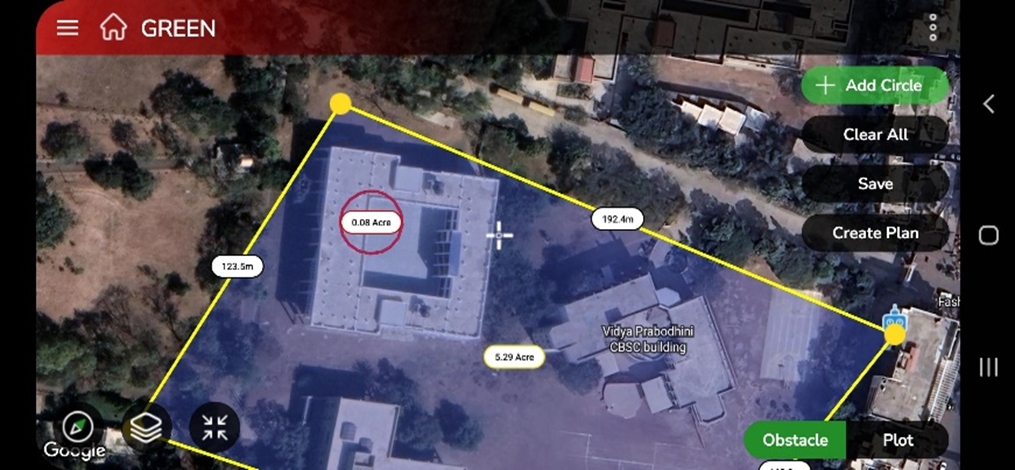
**Step 1**. When the user selects "**Circle**" as the obstacle type, a screen for adding a point appears. By tapping "**+ Add Point**," the user will create a default-sized circle on the user’s plot, with a yellow point on its edge, just like the screen displays.
Circle obstacle
> #### 🛠️ Adjusting the Size of a Circle-Type Obstacle
>
> 1. **Locate the Yellow Dot** 🟡
> * On the edge of the circle, find the small yellow dot used for resizing.
> 2. **Enlarge the Circle** ⬆️
> * To **expand** the circle, **tap and drag** the yellow dot **outward**.
> 3. **Reduce the Circle** ⬇️
> * To **shrink** the circle, **press and drag** the yellow dot **inward** toward the center.
**Step 2**. Once the user has added all the points for the Circle obstacle, tap the "**Save Obs**" button to save it to the user’s plot. The user’s screen will then display the following view.
Save circle obstacle
**User can add Multiple Circle Obstacles by Repeating Steps 1 and 2.**